Import a file in SVG format
MagicEngrave supports vector graphic files in SVG format. If a design is created in programs like Illustrator or CorelDraw, the design can be loaded as long as it is saved as SVG file.
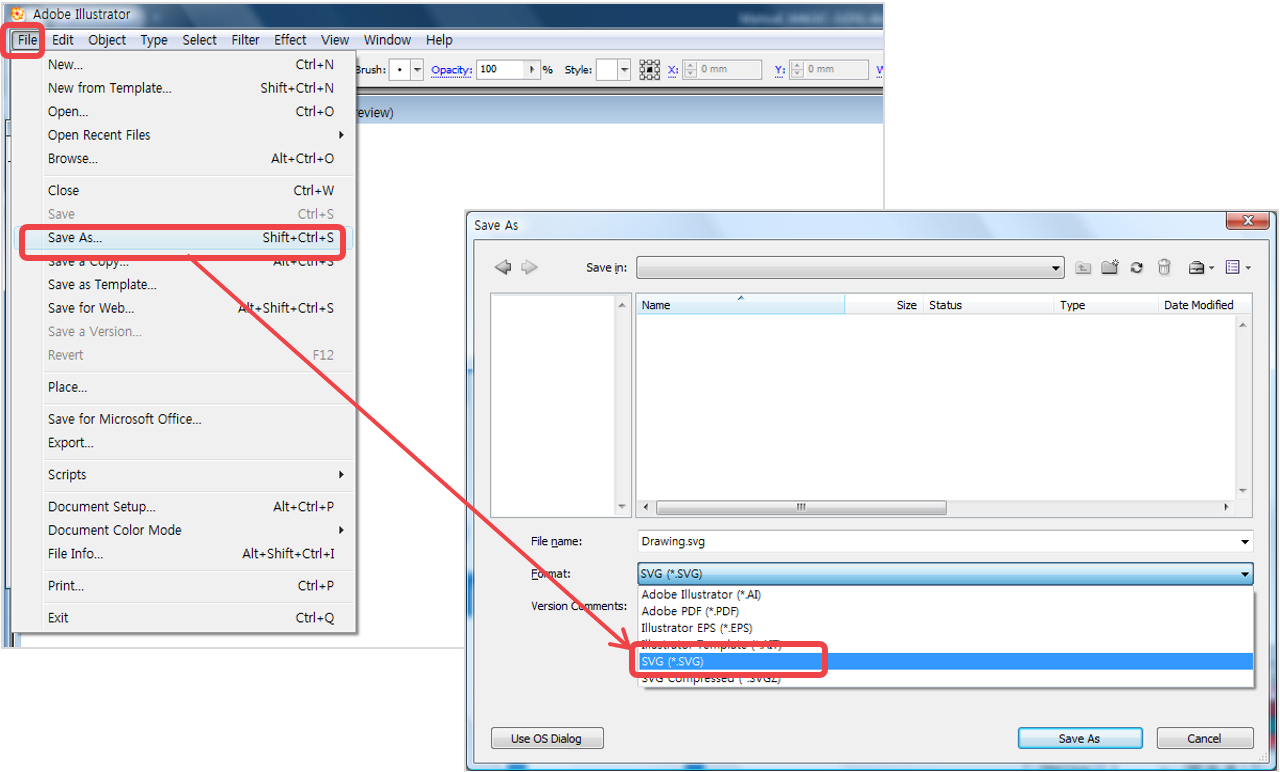
1. Select File menu → Save As from Illustrator program to save a file in SVG format.
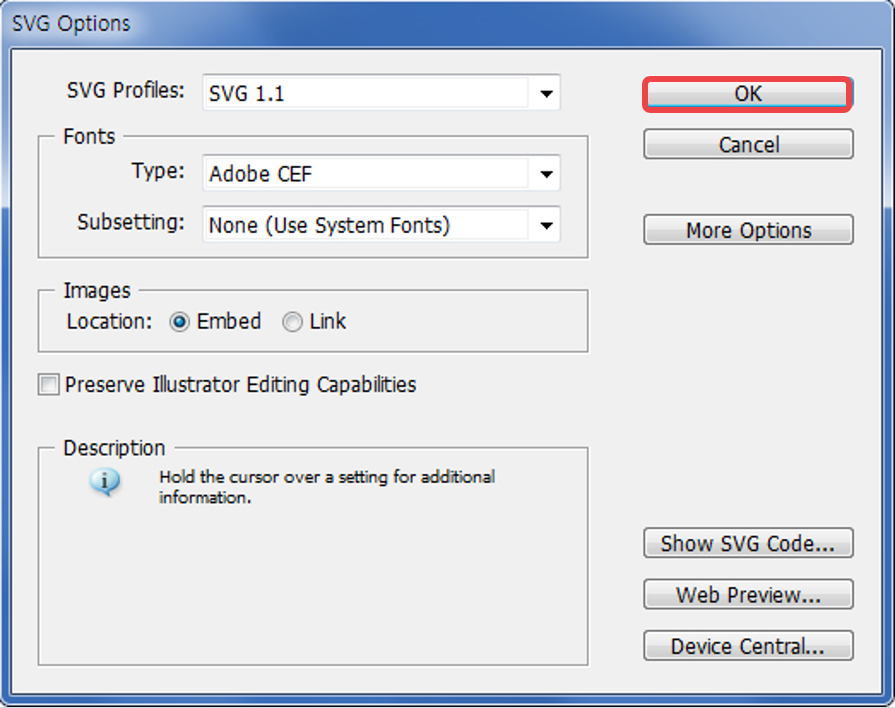
2. When SVG option window appears, click “OK” button to save changes.
3. Click [SVG] button to load the SVG file.
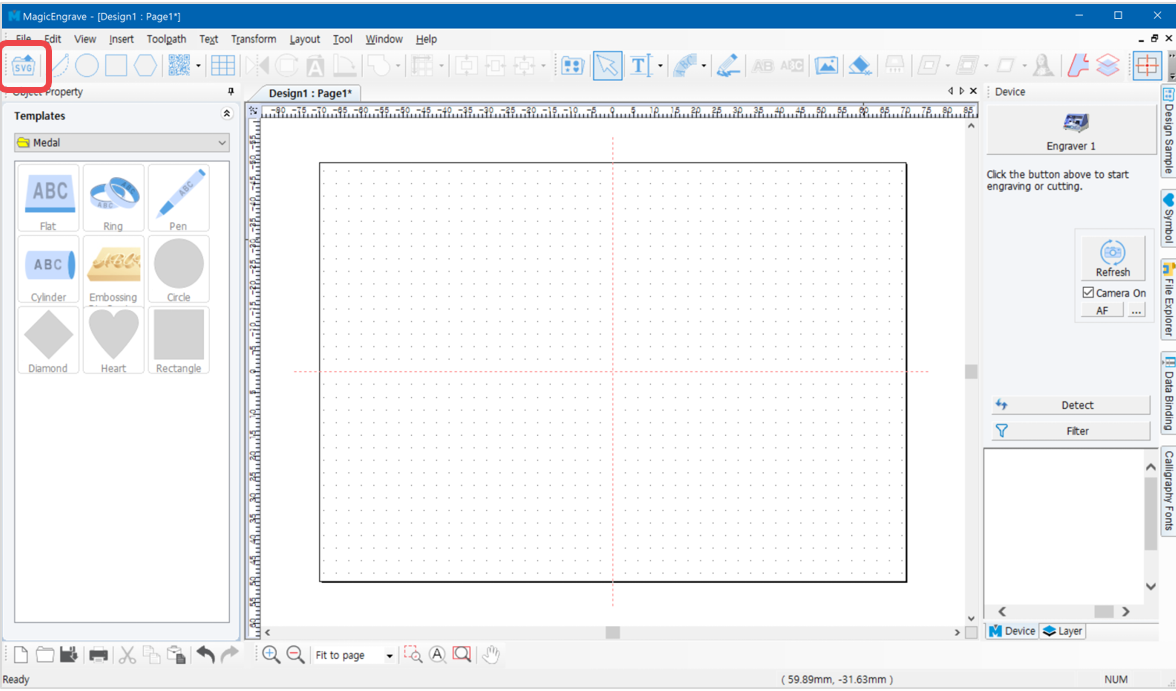
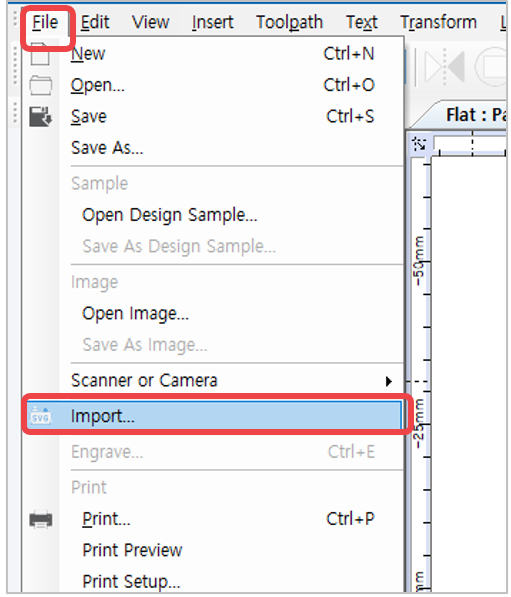
4. Or select [Menu] → [File] → [Import…] to import a file.
5. Once the file is imported, click the work area to display the image.