Multi-Height Auto Leveling Marking
※LASER MARKING ONLY.
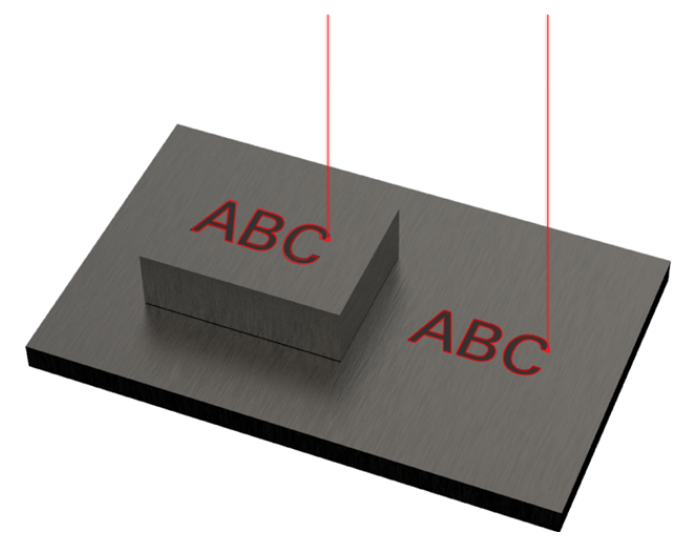
This function enables marking on materials with different heights or thicknesses all at once.
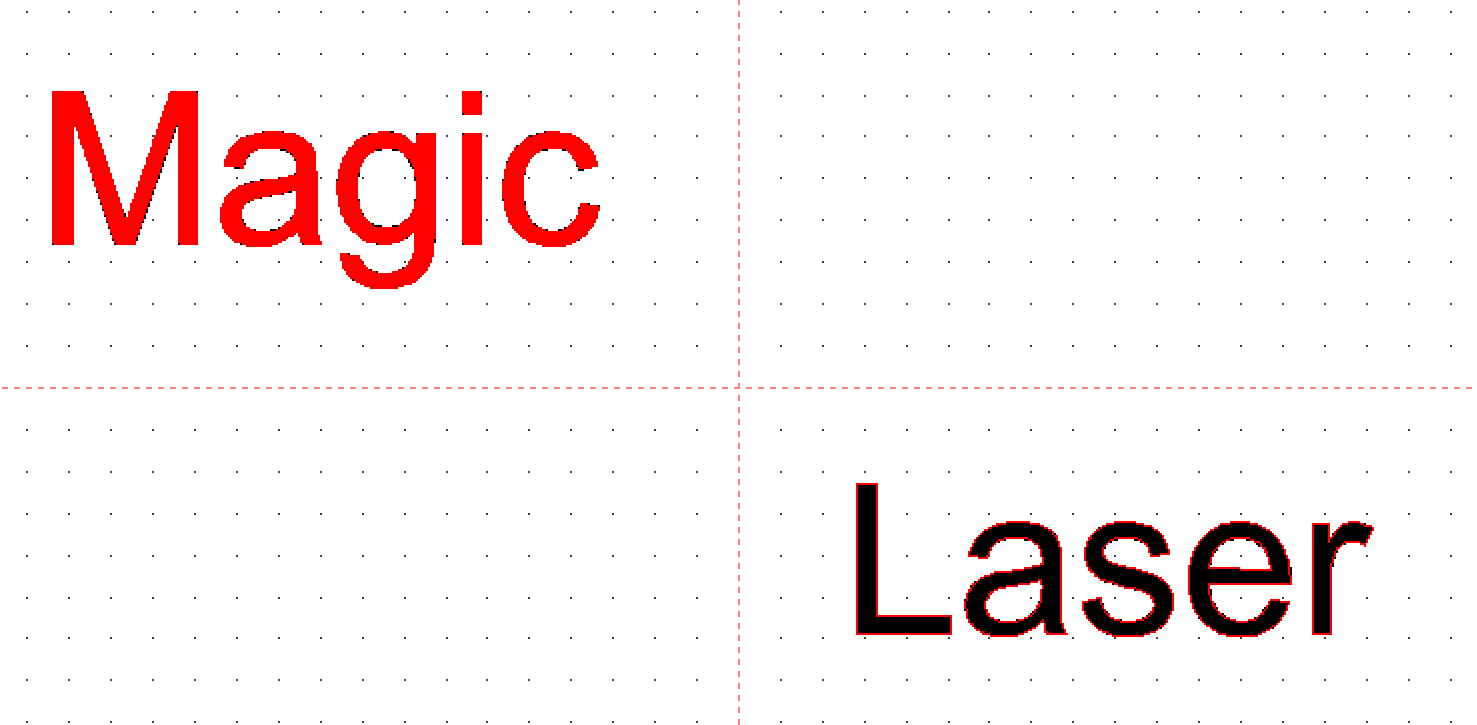
- Enter the text then create a toolpath.
(Example: Magic/Laser).
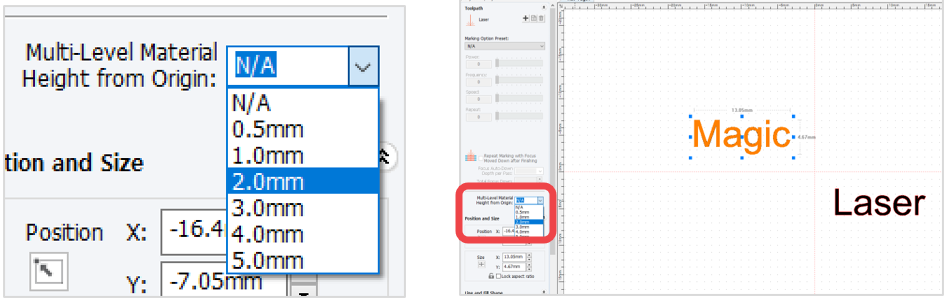
- Once the toolpath for the text object “Magic” is selected, the laser option window appears on the left side of the screen. Click Multi-Level Material Height from Origin button to select the height of the material or, enter the height manually.
- Once the height for the text object “Laser” is entered, the height movement for each toolpath is set and displayed. (Example: Magic 2mm/Laser 4mm).
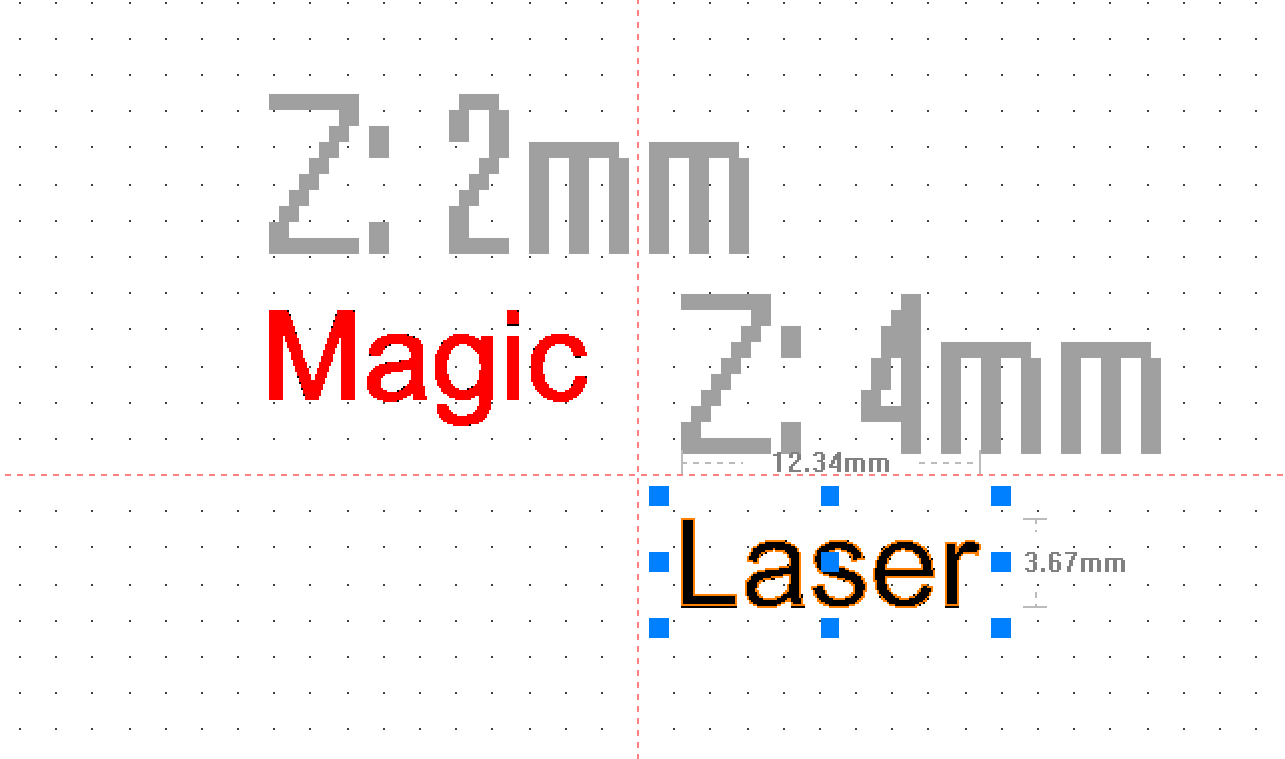
- When engraving begins, the laser height focus for the text object “Magic” moves 2mm up and 4mm up for the “Laser” text object.